
Did you know a typical Windows machine can waste over 30% of its processing power on background tasks you never see? This hidden drag on your computer’s performance is a major reason systems feel slow over time.
We believe your computer should work for you, not against you. Simple, effective tuning can unlock this potential. Our guide provides actionable steps to transform your machine’s responsiveness.
You will learn how to identify what slows down your Windows system. We cover software adjustments and system configuration tips that deliver immediate results. These changes help eliminate crashes and inefficiencies.
Following our advice extends your computer’s lifespan. It also creates a smoother, more productive computing environment. We build from basic optimizations to advanced customizations, creating a complete roadmap for all users.
Key Takeaways
- Uncover hidden processes that drain your computer’s performance.
- Learn simple Windows tweaks to boost system speed significantly.
- Apply software optimizations for a more responsive experience.
- Identify and fix common bottlenecks causing slowdowns.
- Gain practical tips to maintain peak computer efficiency.
- Configure system settings for optimal daily use.
- Build a foundation for advanced performance tuning.
Introduction: Unlock Your PC’s Full Potential
Over time, digital clutter accumulates silently, robbing your system of its original speed and responsiveness. This gradual decline often goes unnoticed until everyday tasks become frustratingly slow.
Understanding PC Tuning and Its Benefits
System optimization involves removing unnecessary files and processes that hinder performance. Regular maintenance ensures your machine operates at peak efficiency.
You’ll experience faster boot times and smoother application performance. Proper tuning also extends hardware lifespan and reduces system crashes.
Everyday Impacts on Computer Efficiency
Common slowdowns include fragmented files and outdated drivers. Excessive visual effects and poor power settings also drain resources.
Recognizing warning signs like sluggish response or frequent freezing helps you address issues early. Following our tips prevents compounding problems.
| Performance Factor | Resource Usage | Effect on Speed | Recommended Action |
|---|---|---|---|
| Startup Programs | High RAM consumption | Slow boot time | Disable unnecessary apps |
| Temporary Files | Disk space clutter | Reduced responsiveness | Regular cleanup |
| Background Processes | CPU overhead | Application lag | Monitor and limit |
| Visual Effects | Graphics memory | Interface delays | Optimize settings |
Implementing these changes creates a more productive computing environment. Your Windows experience will feel fresh and responsive again.
Optimizing Task Manager and Startup Programs
A slow startup is often the first sign that your system is overloaded with unnecessary programs. Many applications configure themselves to launch automatically, consuming valuable memory and CPU power before you even begin your work. This habit directly impacts your computer’s responsiveness.
We’ll show you how to take control using the built-in Task Manager. This powerful tool provides a clear view of everything that runs when your machine powers on.
Disabling Unwanted Startup Applications
Press Ctrl+Shift+Esc to open the Task Manager. Navigate to the “Startup” tab to see a complete list of your startup programs. Here, you can identify which apps are essential, like your antivirus, and which are merely draining resources.
You can also manage these settings via Settings > Apps > Startup. This menu often shows the impact level of each application. Toggle off any program you don’t use daily. Disabling these items immediately frees up RAM and leads to a noticeably faster boot.
Monitoring Background Processes
Beyond startup, it’s crucial to monitor background processes. Services for cloud storage sync, software updaters, or old toolbars can run silently. These processes consume system resources without providing any immediate benefit.
Regularly check the “Processes” tab in your Task Manager. Evaluate which background applications are legitimate and necessary. Closing or uninstalling unnecessary bloatware ensures your computer’s resources are dedicated to the tasks you care about.
Cleaning Temporary Files and Managing Storage
Many users overlook the critical relationship between available disk space and overall computer responsiveness. Your storage drive accumulates unnecessary files from daily activities like web browsing and software updates.
This digital clutter consumes valuable capacity and slows system performance. We’ll show you effective methods to reclaim this space.
Using Disk Cleanup and Storage Sense
Windows includes powerful tools for maintaining your storage. The Disk Cleanup utility safely removes temporary files, system cache, and Recycle Bin contents.
Search for “Disk Cleanup” in your Start menu to access this tool. It identifies various file types you can safely delete to free up space.
Storage Sense offers automated cleanup on a schedule you control. This feature automatically handles temporary files without manual intervention.
Freeing Up Disk Space for Faster Performance
Maintaining adequate free space is crucial for optimal performance. Hard drives need at least 10-15% free space, while SSDs require 25-30% headroom.
Insufficient space forces Windows to struggle with virtual memory operations. This causes dramatic slowdowns affecting your entire computing experience.
Regular cleanup ensures your operating system has room to function efficiently. You’ll notice improved file access times and overall system responsiveness.
Boosting Windows Performance with Power and Visual Tweaks
Hidden within Windows are visual preferences that can significantly impact your system’s fluidity. These adjustments work alongside power management to create a smoother computing experience.
Adjusting Power Settings in the Control Panel
Access Power Options through Control Panel to modify your system’s power plan. Navigate to Control Panel > Hardware and Sound > Power Options to see available plans.
Choose High Performance mode for desktops or plugged-in laptops. This setting prevents CPU throttling and delivers noticeable speed improvements during demanding tasks.
Turning Off Resource-Heavy Visual Effects
Open Performance Options via System Properties > Advanced > Performance Settings. This dialog lets you selectively disable effects that drain system resources.
Focus on transparency effects, window animations, and taskbar animations. These visual elements consume valuable processing power without adding essential functionality.
| Visual Effect | Performance Impact | Recommended Setting |
|---|---|---|
| Transparency Effects | High GPU usage | Disable |
| Window Animations | Moderate CPU load | Disable for speed |
| Shadow Effects | Medium impact | Optional |
| Fade Effects | Low impact | Keep enabled |
Optimizing both power and visual settings creates a noticeably snappier system. You’ll experience faster window operations and quicker menu responses throughout your workday.
Modern Storage Solutions: SSD vs. HDD
Modern computing speed relies heavily on the underlying storage technology that reads and writes your data. The difference between traditional hard disk drives and solid-state drives represents one of the most significant performance upgrades available today.
Hard disk drives use mechanical spinning platters to access information. This physical movement creates latency that slows down your entire system. Solid-state drives employ flash memory with no moving parts, delivering instant data access.
The performance gap between these technologies is dramatic. Upgrading from a hard drive to an SSD can transform boot times from several minutes to under thirty seconds. Applications launch near-instantly, and file operations become significantly faster.
| Storage Type | Read/Write Speed | Boot Time | Reliability |
|---|---|---|---|
| Hard Disk Drive (HDD) | 80-160 MB/s | 2-3 minutes | Mechanical parts can fail |
| Solid-State Drive (SSD) | 400-3500 MB/s | 20-30 seconds | No moving parts |
Beyond raw speed, SSDs offer superior reliability with no mechanical components. They generate less heat and operate silently. Current prices make this upgrade accessible for most users.
Swapping an old hard disk for a modern SSD often delivers more noticeable improvement than processor or memory upgrades.
You can clone your existing drive to preserve all data and settings. This seamless transition eliminates the storage bottleneck, making your entire computing experience feel like using a new machine.
The most common PC Tuning tweaks that will elevate your every day computer life
Beyond basic cleanup, advanced tools offer deeper optimization for your machine. These methods target underlying system components that can accumulate inefficiencies over time.
Applying these strategies reclaims valuable resources and enhances overall stability. We will explore specialized software and service management.
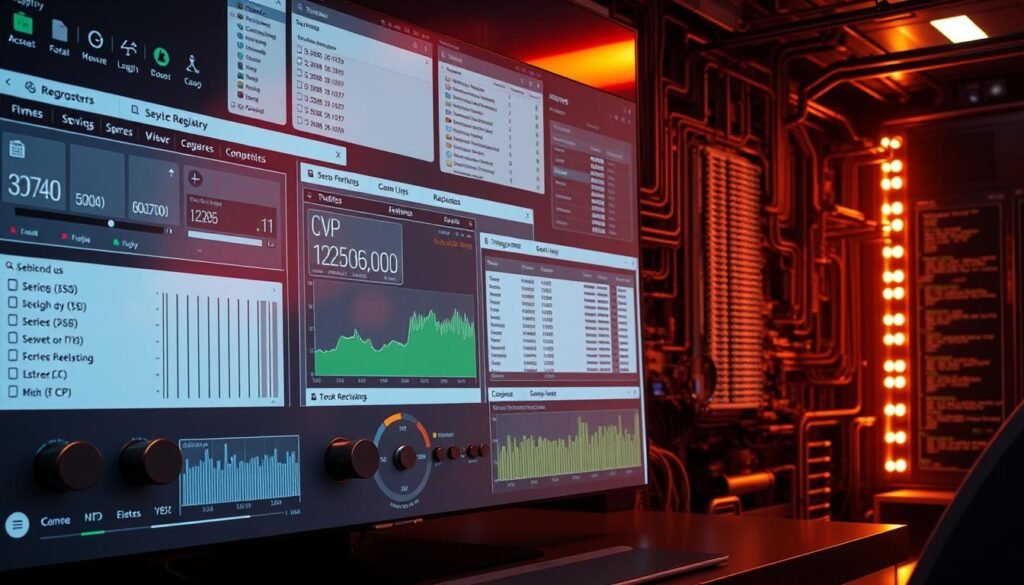
Utilizing Advanced Registry Cleaners and Maintenance Tools
Your Windows registry is a central database for settings and options. Over years of use, it can become cluttered with outdated entries from uninstalled programs.
Tools like Auslogics Registry Cleaner safely scan for and fix these problems. They remove obsolete data that can slow down your system.
CCleaner provides a comprehensive solution. It cleans temporary files, browser caches, and registry issues in one operation.
For traditional hard drives, Defraggler optimizes file placement. This improves access speed by reducing mechanical movement on the drive.
Disabling Unnecessary Background Services
Many Windows services run automatically in the background. While some are critical, others consume resources without providing immediate value.
Cloud sync services, automatic updaters, and third-party toolbars are common examples. These programs can use RAM and CPU cycles even when idle.
Access the Services console by typing services.msc in the Run dialog. This list shows all active background processes on your machine.
| Service Type | Typical Impact | Recommended Action |
|---|---|---|
| Essential System Services | Critical for OS function | Leave enabled (Automatic) |
| Third-Party Utilities | Variable resource usage | Set to Manual or Disable |
| Cloud Storage Sync | High network/RAM use | Disable if not needed constantly |
Review each service’s description to understand its purpose. Disabling non-essential items frees up system resources for your active tasks.
This strategic management creates a noticeably more responsive computing environment for daily use.
Routine Reboots and Essential Software Updates
Two simple habits can dramatically improve your computer’s responsiveness: routine restarts and timely software updates. These maintenance practices prevent gradual performance degradation that occurs during normal use.
Restarting your machine clears RAM and stops memory leaks from accumulating. Many users keep systems running for extended periods, allowing residual data to build up. This clutter gradually slows down operations over time.
Establish a regular reboot schedule that fits your workflow. Daily shutdowns work well for home users, while weekly restarts suit office environments. This practice ensures your operating system starts fresh regularly.
Keeping software current is equally important for optimal performance. Microsoft releases Windows updates that fix bugs and enhance efficiency. These patches address security vulnerabilities while improving system stability.
Don’t overlook driver updates for hardware components. Graphics cards, network adapters, and other devices benefit from current drivers. Updated versions often include performance optimizations and compatibility improvements.
Configure Windows Update to install patches automatically. Regularly check for pending updates to keep your system current. This diligence maintains a clean, efficient computing environment day after day.
Upgrading Hardware for a Performance Boost
RAM upgrades represent one of the most effective hardware improvements for boosting system responsiveness. When your machine struggles with multiple applications, memory constraints are often the root cause.
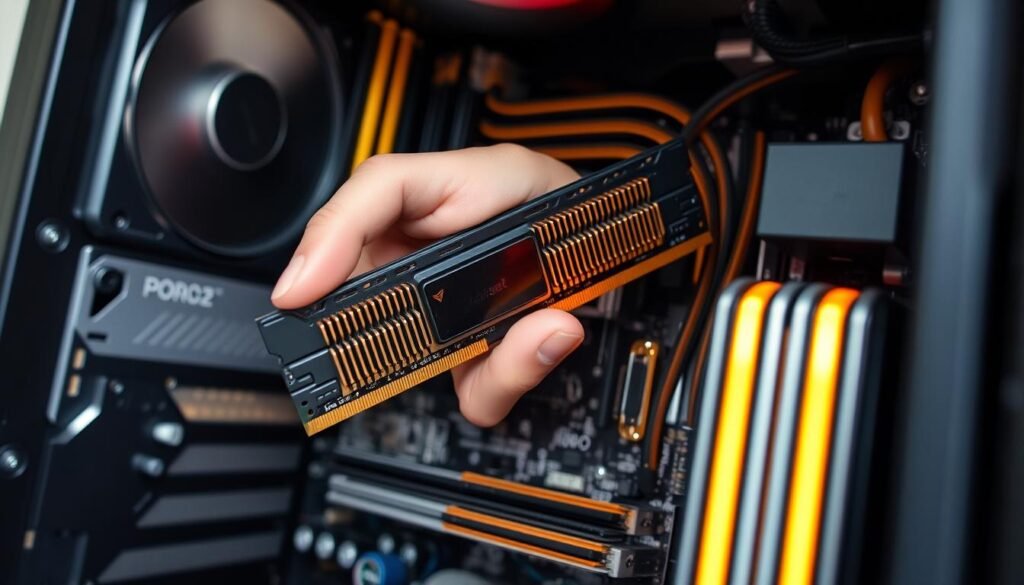
Enhancing Performance with Additional RAM
Random-Access Memory serves as your computer’s active workspace. Insufficient RAM forces the system to use slower storage as virtual memory. This creates significant performance bottlenecks.
Watch for warning signs like high memory usage in Task Manager. Frequent slowdowns during multitasking indicate inadequate capacity. Excessive hard drive activity suggests swap file overuse.
Current recommendations vary by usage. Basic home computing needs at least 8 GB RAM. Gaming and creative work benefit from 16 GB. Professional workstations may require 32 GB or more.
| Usage Scenario | Minimum RAM | Recommended RAM | Performance Impact |
|---|---|---|---|
| Basic Home Use | 8 GB | 8-16 GB | Smooth browsing and office apps |
| Gaming & Creative Work | 16 GB | 16-32 GB | Fast rendering and multitasking |
| Professional Workstation | 32 GB | 32-64 GB | Handles demanding applications |
Adding memory is surprisingly straightforward for desktop PCs. Most systems have empty slots for additional modules. This cost-effective upgrade delivers immediate speed improvements.
Businesses upgrading older machines from 4 GB to 16 GB report dramatic transformations. Systems handle modern workloads with ease. You eliminate bottlenecks and enable smooth operation across all applications.
Securing Your System with Regular Updates and Malware Scans
A sudden performance drop often signals hidden malware activity on your machine. These security threats consume CPU cycles, RAM, and disk space while running unauthorized background tasks.
Malware infections can cause unexplained slowdowns as systems work overtime. They might send spam emails or perform cryptocurrency mining without your knowledge. Regular scans help identify these resource-draining issues.
Use Windows Security (formerly Defender) for comprehensive protection. Ensure this built-in software stays updated with the latest threat definitions. Perform full system scans weekly to catch hidden threats.
Supplement with additional security apps like Malwarebytes for layered defense. These tools detect threats that might bypass primary antivirus software. Removing malware instantly frees up system resources.
Keep real-time scanning enabled to prevent new infections. This proactive approach stops threats before they establish themselves. It protects both performance and sensitive data from compromise.
Business environments benefit greatly from consistent security maintenance. A single infection can spread across networked machines. This disrupts productivity and creates widespread performance issues.
Regular updates and malware scans maintain optimal system operation over time. They ensure your machine remains fast, reliable, and secure for daily tasks.
Physical PC Maintenance: Cleaning Dust and Improving Cooling
Dust buildup inside your machine represents a tangible threat to sustained high performance that software adjustments cannot resolve. Over time, desktop towers and laptops accumulate debris in vents, fans, and heatsinks.
This accumulation blocks essential airflow, causing internal temperatures to rise significantly. Excess heat triggers thermal throttling, where your CPU and GPU automatically slow down to prevent damage.
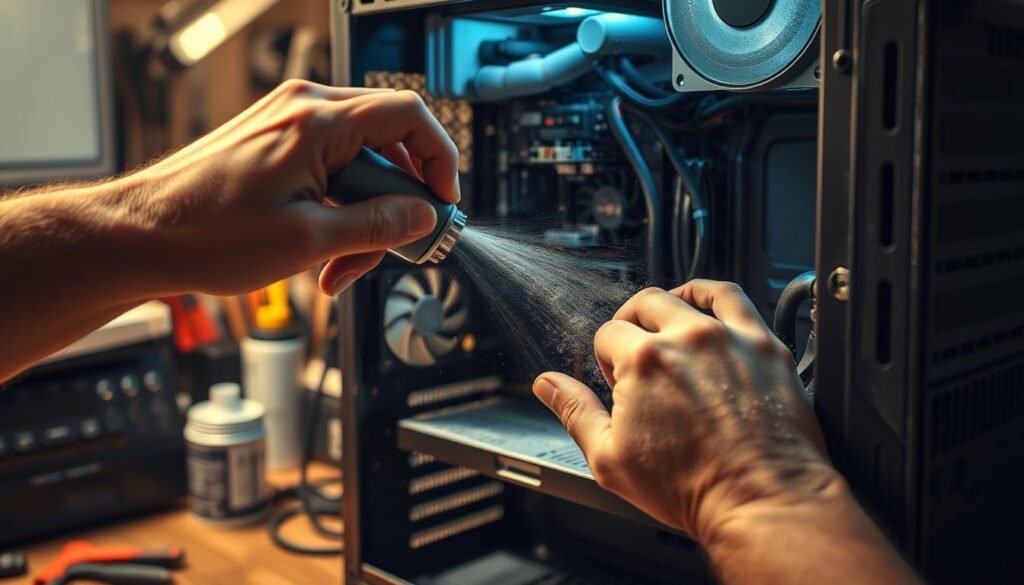
Proper hardware maintenance begins with safety precautions. Always power down your system completely and unplug it before opening the case. Work in a well-ventilated space using compressed air or anti-static brushes.
Focus cleaning efforts on critical cooling components. Clear dust from CPU fans, case fans, power supply intakes, and graphics card coolers. Pay special attention to heatsink fins where dense accumulation occurs.
Regular physical maintenance prevents performance issues caused by overheating. It extends hardware lifespan and reduces noise from overworked cooling systems. This approach is particularly vital for machines in dusty environments or homes with pets.
By maintaining proper cooling, your computer operates at optimal capacity without thermal limitations. A clean system delivers consistent performance and protects your hardware investment long-term.
Advanced Customization: Tailoring Your PC Settings
Power users have access to granular settings that fine-tune operating system behavior for optimal resource allocation. These advanced configurations go beyond basic optimizations to deliver maximum system performance.
Customizing Windows Settings for Power Users
Disable Windows suggestions and tips through Settings > System > Notifications & actions. This reduces background activity while enhancing privacy. Manage OneDrive syncing by choosing specific folders or temporarily pausing synchronization.
Control Windows Search indexing for drives containing large media libraries. This significantly reduces disk activity on traditional hard drives. Configure automatic defragmentation schedules for HDDs through Optimize Drives.
Experiment with disabling Game Mode when running productivity applications. This feature sometimes hinders performance for non-gaming tasks. Utilize built-in troubleshooters to automatically diagnose and fix common issues.
Utilizing Tools to Monitor System Resources
Tools like Speccy provide detailed insights into hardware temperatures and component health. This data-driven approach helps identify bottlenecks affecting system performance.
Monitor real-time resource usage through Task Manager’s advanced view. Track CPU, memory, and disk activity to understand how applications impact overall system responsiveness.
ReadyBoost can accelerate systems with limited RAM by using USB drives as cache. Enable this feature through drive properties for an instant performance boost.
Conclusion
Transform your daily computing experience by integrating these optimization techniques. Consistent maintenance ensures your machine operates at peak performance levels.
You now possess comprehensive tips covering software optimization, storage management, and hardware considerations. These strategies help address common performance issues effectively.
Start with simple adjustments like managing startup programs and clearing temporary files. Gradually implement more advanced ways to boost system speed.
Regular upkeep prevents gradual system degradation and extends your computer’s lifespan. This ongoing practice keeps your machine running faster and more reliably.
Apply these maintenance habits systematically to unlock your PC’s full potential. Your investment in these practices pays dividends through enhanced productivity and smoother operation.